



You want focus, comfort, and a clear line between work and home. You need tools that support your body, your tasks, and your attention span. The right setup does not demand a massive budget or a dedicated room; it demands smart choices about where you sit, what you see, and how you block out distractions. These ten essentials will help you build a workspace that actually works for you.
Claim a Dedicated Workspace That Separates Work From Home Life
Because working from your couch sounds cozy until you realize you’ve answered emails for three hours while still in pajamas, you’ll want to carve out a space that’s truly yours. Your Home Office Setup starts with claiming a spot that feels separate from where you relax.
The couch is cozy until three hours of emails pass and you’re still in pajamas—claim a space that’s truly yours.
Why Boundaries Matter****
When you’re working from home, your brain needs signals to switch into work mode. Without clear boundaries, you’ll blur work and downtime until neither feels right.
Make It Work in Any Space
- Use a low bookshelf or room divider to mark your desk space
- Pick a quiet corner away from family traffic
- Position near a window for natural light during screen breaks
If you’ve got a spare bedroom, use it. If not, even a converted closet works. You don’t need a standing desk yet; just start somewhere defined. When you break your home office routine at day’s end, you’ll actually feel done.
Recommended Products

Electric Height Adjustable Standing Desk for Comfortable Work - Switch effortlessly between sitting and standing with this electric standing desk. The smooth height adjustment from 28.35" to 46.46" helps promote a more comfortable working posture and keeps your energy flowing throughout the workday. Ideal for home offices, gaming setups, and productivity workspaces.
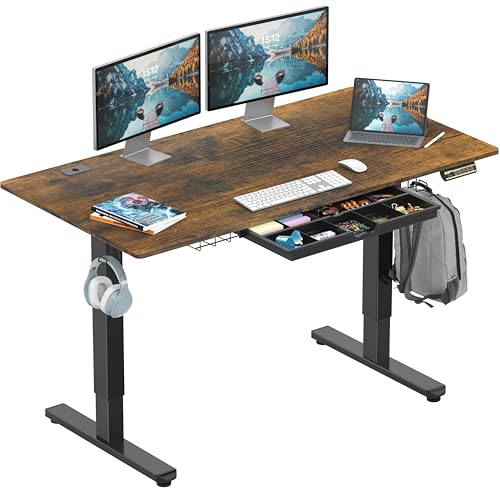
Built-in Convenience Features: Includes integrated hooks for headphones or bags, a cable management tray, and desktop grommets to keep wires organized and out of sight.

[Electric Height Adjustment] This desk operates under 50 dB for a quiet, seamless lifting experience. It adjusts from 28" to 46" for easy sit-to-stand transitions and features 3 programmable memory presets for one-touch height changes.
Choose a Desk That Supports Sitting, Standing, and Cable Management
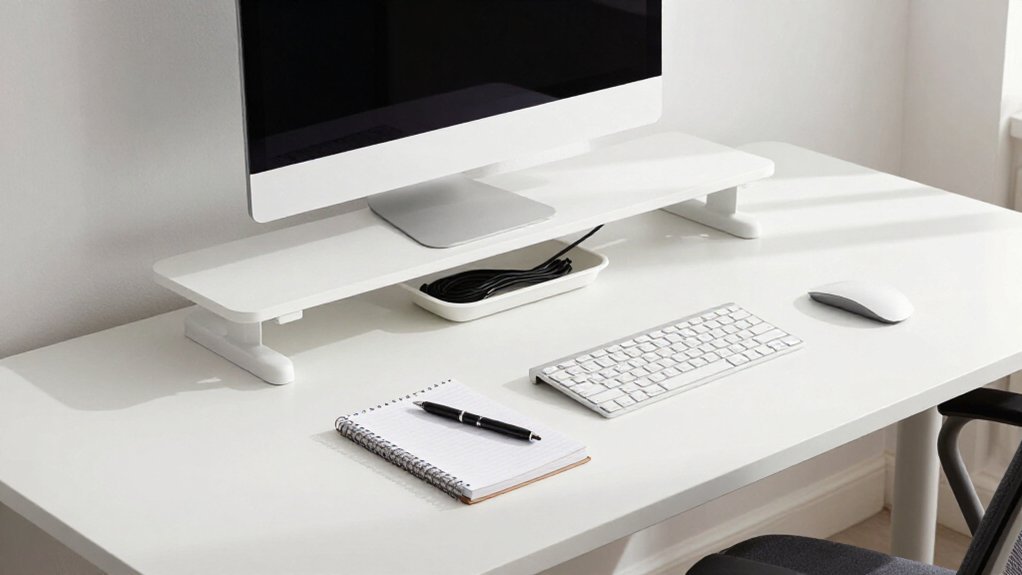
How do you stay comfortable when you’re sitting for hours on end? You don’t have to pick one position. A height-adjustable desk lets you switch between sitting and standing throughout the day, cutting down on stiffness and fatigue.
Standing desks with preset height settings make these swaps quick and seamless. You won’t lose focus fumbling with manual cranks.
Here’s what to look for:
- Enough surface area for your keyboard, mouse, and multiple monitors; check your monitor arm weight limits too
- Built-in cable management with desk-side storage to keep cords tidy and out of your way
- Smooth electric transitions so you can change height and angle without breaking your workflow
- Stable placement that supports neutral neck posture and prevents cables from snagging during movement
Pair your desk with an Ergonomic Chair for the sitting portions, and you’ll handle long workdays with far less strain.
Recommended Products
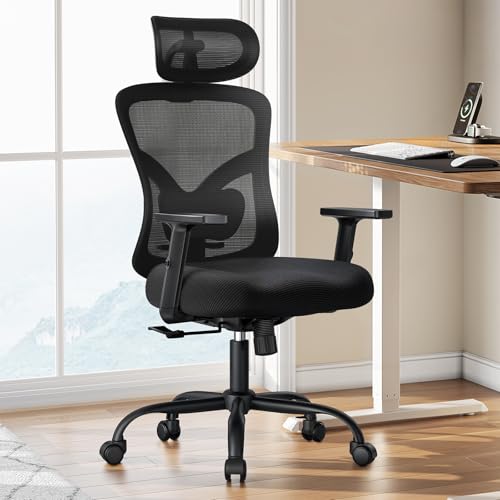
Adjustable Lumbar Support: This ergonomic office chair is designed to align with the natural curve of your spine. It features a 2.4″ height-adjustable range, offering targeted relief for the lower back. The soft, enhanced lumbar pad helps ease tension and alleviate fatigue.
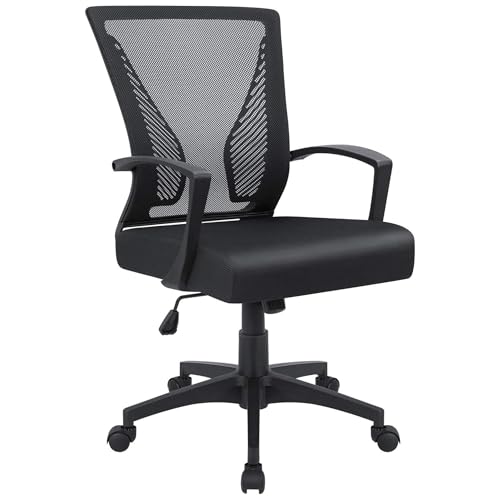
Ergonomic Design: The overall design of this office chair is ergonomic, two lumbar supports on the backside of the chair back are not only for beautiful looking, when you lean in the chair, it feels comfortable like two hands are supporting your waist, with a slightly concave design on the cushion, this chair can effectively relieve the back pain that caused by long hours of sitting, this will be a very wonderful experience for your use

ERGONOMIC WORK CHAIR: The reliable office chair is purpose-built to encourage good posture. The backrest fits the shape of the human spine. In addition, it provides head/shoulder/back/ hips/ hands supporting points and proper lumbar support, thus reducing strain on your back, promoting proper posture, relieving the pressure on the buttocks. Ideal for home office, student study, executive work, reading and gaming scenarios.
Choose an Ergonomic Chair for All-Day Posture Support
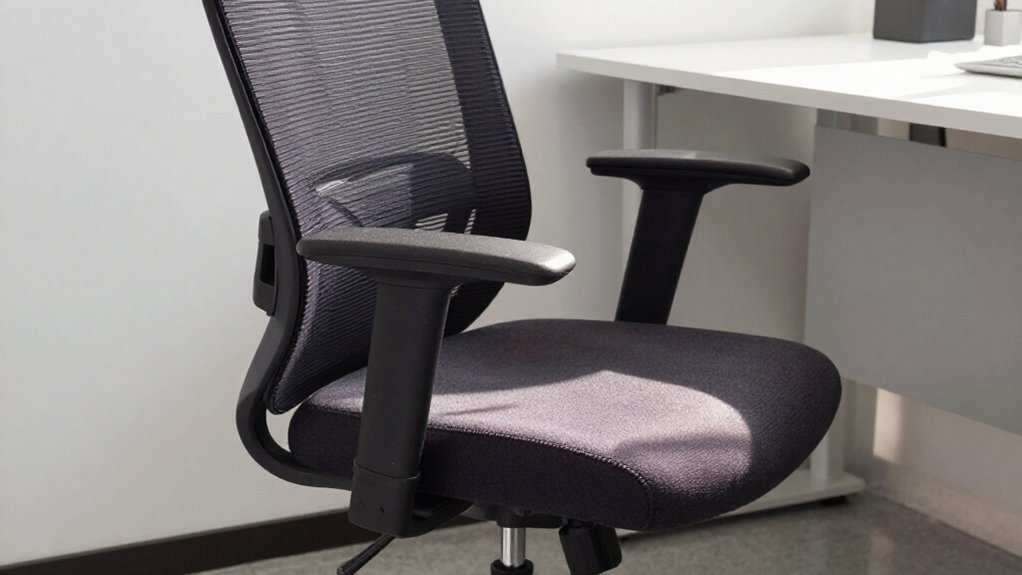
If you’re going to spend eight hours parked in one spot, you’d better make sure that spot treats your body right. Your ergonomic Office starts with the right office chair.
Eight hours in one spot? Make sure your chair treats your body right—ergonomics starts with where you sit.
Key Features to Look For
- Seat-height adjustment: This lets you plant your feet flat while keeping your knees at a comfy 90° angle.
- Lumbar support: Find a chair with adjustable lower-back support to prevent neck and shoulder stiffness.
- Adjustable armrests: Multi-directional styles, like 4D armrests, keep your shoulders relaxed and stop you from shrugging.
Good posture actually boosts productivity by up to 75%, and you’ll feel comfortable longer without eye strain creeping in from poor positioning. Test the backrest, seat depth, and armrest reach before you buy. A wrong fit leads to stiffness fast.
Recommended Products

Compatible with Wide Screens - To ensure compatibility with the dual monitor mount, your each monitor must meet three conditions at the same time: First, computer screens size range: 13 to 32 inches. Second, screen weight range: 4.4 to 19.8 lbs. Third, the back of the monitor screen must have VESA mounting holes with a pitch of 75x75mm or 100x100mm.

Check Desk & Monitor Compatibility: To ensure a proper fit, your monitor must meet these 3 conditions at the same time: First, screen size ranges 13"–32". Second, monitor weight must be between 4.4–19.8 lbs (flat screens) or 4.4–15.4 lbs (curved screens). Third, supports VESA 75×75mm or 100×100mm. Meanwhile, we recommend mounting this arm only on wood desks 0.59"–3.54" thick (other desk types not recommended). Note: If your desk has irregular edges, please choose this monitor arm carefully.

Keep Your Desk Organized: By lifting screen off the desktop, this monitor arm opens up valuable space for your keyboard, notebook, docking station or a simple, clutter-free work area. Built-in cable management guides wires along the arms, keeping cords out of sight and out of the way. Enjoy a tidy, modern workstation that looks as good as it feels to use.
Pick a Home Office Computer That Handles Your Actual Workload
Once your chair’s sorted, it’s time to think about the machine you’ll actually be working on. Your Home laptop needs to match what you’re doing day to day. Most standard office tasks run fine on Windows laptops from Dell, Lenovo, or Acer. Heavier creative work, like design or video editing, may justify a MacBook Pro.
Here’s what to prioritize:
- Speed: Choose an SSD, not an older HDD, for faster boot and app loading.
- Memory: Get enough RAM so multitasking doesn’t lag.
- Display: Pick an IPS Full HD screen in a size you can read comfortably for long sessions.
- Power: For portable productivity, consider options with AMD Ryzen chips or the MacBook Air M4. Chromebooks work for basic browser Work From Home setups.
Recommended Products

Create Private Space: Our room divider is ideal for you to create your own space,can play a good role in rooms to functionally partitions. It can not only provide you with a private space, the simple and generous screen can also be used as decoration or background board in the home.

✅ 𝐂𝐑𝐄𝐀𝐓𝐄 𝐏𝐑𝐈𝐕𝐀𝐓𝐄 𝐖𝐎𝐑𝐊𝐒𝐏𝐀𝐂𝐄𝐒 𝐈𝐍𝐒𝐓𝐀𝐍𝐓𝐋𝐘 Quickly divide desks, offices, classrooms, clinics, salons, and shared spaces for better privacy and focus.

Acoustic panels enhance privacy and reduce noise while helping foster safe separation between coworkers, students, employees and customers, and more
Arrange Workspace Lighting Before Positioning Your Screens
You’ll want to get your lighting sorted before you even think about where to put your monitors. Start by placing your desk so window light hits your workspace from the side, not behind your screen, which keeps glare from wrecking your eyes during long work sessions. Then balance bright overhead lighting with a desktop lamp behind your monitor so your screen doesn’t feel harsh against a dark room.
Recommended Products

💻【CRI≥95 &Highly Restore Color 】OOWOLF LED monitor lamp inspired computer users with its ultra-high color rendering index (CRI≥95) for precise lighting and excellent reading conditions.Extremely restoration of true natural light colors, reduce Color Error visual fatigue , this screenbar can great improve accuracy and efficiency of your work for long time.

【Dual Head Modern Design】The blue table lamp adopts a double-head design.The left and right head can be unfolded into a straight line, with the 160-degree swing angle in up and down direction, providing you with a larger lighting coverage and angle. Foldable design makes it effectively reduce writing shadows.
Light Position Fundamentals
Before you touch your monitor, you need to sort out your lighting. Here’s how to nail your light position:
- Place your main light to evenly fill the room without harsh glare bouncing off your monitor; this setup makes marathon sessions easier on your eyes and helps reduce eye strain.
- Position a desk lamp behind or slightly above your monitor to wash light forward, which cuts reflections and keeps your display readable.
- Angle your desk near windows so sunlight never hits your screen directly; slight offsets work wonders for window-facing setups.
- Add dedicated video calls lighting, like a small ring light, so your face stays visible when room lighting falls unevenly.
Match your brightness to your screen’s clarity, and you’re set.
Screen Glare Prevention
Now that your lights are in place, you’re ready to position your screen where it won’t fight back against all that careful work.
Screen glare prevention starts with placement. Set your monitor at arm’s length and angle it away from windows so you’re not staring into reflections. If you’ve got a standing desk with an arm mount, adjust height and tilt until light quits bouncing off the glass.
Desk lighting matters too. Position your lamp behind or beside the monitor, never directly in front where it creates hot spots. Tidy cords with cable management clips so nothing shifts your setup out of alignment.
For extra comfort, use blue-light filtering, either built into your monitor or through software. Small tweaks like these keep your eyes happier through long days, no fancy gear required.
Ambient Balance Techniques
Once your room feels evenly lit from ceiling fixtures or natural windows, you’re ready to layer in focused task lighting. Start your ambient balance by placing a desk lamp behind your monitor so it washes the wall, not your eyes. This monitor lighting helps reduce glare and keeps screens readable for hours.
Next, tackle call lighting. Position a ring light or soft panel at face level before you lock in screen placement. You’ll dodge harsh shadows and that “trapped in a cave” video look.
Use natural light as your anchor. Angle your desk so daylight brightens your workspace without bouncing directly off screens during peak hours.
Finally, adjust monitor height and tilt to maintain neutral neck posture. Only settle on placement once you’ve balanced all light sources and the screen isn’t the brightest thing you see.
Choose and Position a Monitor That Reduces Neck and Eye Strain
Because you’ll spend hours staring at your screen every day, picking the right monitor, and placing it carefully, will spare you a lot of pain later.
Position for Comfort
Position your monitor so the top sits at eye level. Keep your viewing distance at about arm’s length to stop neck bending and cut eye strain.
Choose Smart Features
Pick a screen size that fits your desk without crowding. Grab a VESA mount model, like BenQ or Dell UltraSharp lines, so you can tilt and raise the display for a neutral head posture. A higher refresh rate helps scrolling feel smoother. Consider an ultrawide monitor if you juggle multiple windows; it keeps everything visible without constant head turning. For sharp text that reduces squinting, look at 4K options like Dell’s 32 Plus 4K QD-OLED.
Cut the Glare
Keep bright areas away from windows. Add a desk lamp that lights evenly without reflecting off your screen.
Recommended Products

Smooth Electric Height Adjustment: Easily switch between sitting and standing with three memory presets. The quiet motor adjusts the desk height from 28.3" to 46.5" for a personalized, ergonomic experience at the touch of a button.

Smooth Electric Lift Function: The electric standing desk features a powerful and quiet electric motor (<45dB). It lifts at 25mm/s, with a height adjustment range of 28.3" - 46.5", accommodating different heights for various needs. The adjustable desk comes with an easy-to-use control panel and memory function, allowing you to preset up to 3 frequently used heights for enhanced efficiency and comfort at work

Power & LED Lights: This AODK Standing desk includes a built-in power outlet with 3 Outlets & 2 USB Ports to charge your devices. Also, you can use the LED Lights to vary the 20 light modes to bring various atmospheres to your space
Pick a Keyboard and Mouse That Feel Natural for Hours of Use
Think of your keyboard and mouse as a team that should disappear into your workflow. If you switch between laptop and desktop, Bluetooth connectivity saves you from re-pairing every time. For heavy coding or writing, research options like the Anne Pro 2; it combines mechanical feel, multiple device connections, and a layer-based layout in one portable package. Test different shapes in person when possible, your hands will thank you by day’s end.
Recommended Products

Fully Adjustable Office Chair: Customized chairs, featuring with an adjustable 2D headrest, backrest with 90° to 120° recline, and 3D adjustable armrests for multiple work postures at will and discover unparalleled comfort throughout the workday.

ERGONOMIC DESIGN - The ergonomic office chair backrest mimics the shape of the human spine, providing the perfect support for your back and neck, allowing you to maintain the correct sitting posture and ease pressure & pain on the back for everyday use.

【Enhanced Lumbar Support】This office chair features a large and adjustable lumbar support cushion filled with thick sponge to cradle your lower back and help you maintain a comfortable posture for long hours of work. It also has an S-shaped ergonomic backrest that aligns with your spine and reduces pressure and muscle fatigue.
Ergonomic Input Selection
While you might focus first on your chair or monitor, your keyboard and mouse quietly shape how your shoulders, wrists, and neck feel by the end of the day.
To build lasting comfort, you’ll want gear that fits your body and keeps your hand relaxed through long sessions.
- Match your natural angle: Pick a keyboard and mouse that mirror your hand’s resting position. Good wrist posture prevents strain that creeps into your shoulders later.
- Test key feel: You’ll know it’s comfortable when hours pass without soreness. Mechanical keyboards with gentle key travel help developers avoid awkward reaches.
- Size your mouse right: Your elbow should stay near your body, not stretching outward. This stops repetitive shoulder shrugging.
- Switch it up: Add a trackpad to alternate movements. Changing input methods reduces fatigue while keeping consistent positioning.
Comfort-Driven Pairing
Since you’ll spend thousands of hours tapping and clicking, your keyboard and mouse deserve more thought than a quick online order.
Start with typing feel. It’s a game-changer for coding work and long sessions. One developer chose an Anne Pro 2 after research for comfortable, extended typing. You’ll want keys that respond naturally to your fingers without forcing awkward reaches.
If you use a laptop, add a separate keyboard and mouse/pointing device. This keeps your neutral posture intact. No more hunching forward or straining your shoulders.
Pick a layout that matches your habits. Vim users, for example, might skip arrow keys for function-layer access.
For your mouse/pointing device, prioritize all-day control. An Apple Magic Mouse 2 works well for some, but test what fits your grip.
Judge any comfortable pairing by one thing: can you work without hand/wrist fatigue? That’s your productivity win.
Use Headphones to Block Noise and Signal “Do Not Disturb”
Why let a barking dog or your roommate’s playlist derail your focus? You’re working remotely, so you control your soundscape. Noise-cancelling headphones block household chaos, helping you stay focused during deep work. They also send a clear do-not-disturb signal to anyone nearby, even when you’re not playing audio.
Wireless headphones add freedom of movement, so you won’t feel tethered during long sessions. Consider these setups:
- One pair for Zoom calls with a reliable microphone
- Noise-cancelling headphones for solo, immersive tasks
- Lightweight earbuds when you need quick breaks
- Over-ear wireless options for all-day comfort
Consistent use builds boundaries. When people see headphones, they know you mean business. No lengthy explanations needed.
Recommended Products

Great Adaptability: This HUANUO single monitor arm fits 13-32 inch monitors, holds 4.4-19.8 lbs, suitable for VESA patterns of 75x75mm & 100x100mm. This monitor mount is specially designed for ergonomics, aiming to help people work comfortably, and to help people have a better viewing experience.

Ultrawide Compatibility: The ErGear heavy-duty monitor arm is compatible with most 13″–34″ flat or curved monitors up to 19.8 lbs with VESA mounting patterns 75x75mm or 100x100mm. Please verify the screen size, weight, and VESA pattern of your monitor before purchase.

Compatible with Wide Screens: The ErGear heavy-duty dual monitor arm is designed to fit most 13″–32″ flat or curved monitors, supporting up to 19.8 lbs, and it's compatible with VESA mounting patterns of 75x75mm or 100x100mm. Be sure to verify your monitor’s VESA pattern, size, and weight before purchasing to ensure a perfect fit.
Add Storage Within Arm’s Reach to Minimize Desk Clutter
Once you’ve got your headphones on and your focus locked in, the last thing you want is to break your flow hunting for a pen or charger. Keep storage within arm’s reach so your keyboard, notebook, pens, and chargers stay close without crowding your workspace.
Use desk-side storage with cable-managed compartments to stop loose papers and cords from piling up. Set up a scan-and-file workflow: store finished paperwork in labeled A4 envelopes tucked away, keeping only today’s notes in front of you.
Add cable organizers to wrangle small peripherals and keep your surface clean. If space is tight, pick a desk with drawers or add a compact cabinet. You’ll stash clutter immediately instead of stacking it “just for now.”
Recommended Products

NOTICE: Curtains are not included

Move and Store Freely:This office room divider is lightweight, so it's easy to store without taking up much space. Also it is flexible, and you can change or move it freely.

【Large Capacity & Space-Saving Design】Featuring 5 tier paper trays, a vertical file holder, a 2-slot hanging pen holder, and a 3-compartment sliding drawer, this desk organizer maximizes vertical space while keeping all your office supplies neatly arranged. Perfect for home offices, students, and busy workspaces.
Control Cables and Digital Clutter to Protect Your Focus
Tame the cable chaos before it hijacks your attention. You’re working hard, but tangled cords fight for your eyes and break your flow. Take control with simple cable management that keeps your mind clear.
Start with these basics:
- Route cords under the desk using cord ties, then add desk-side storage for extras you don’t need daily
- Mount a monitor arm with VESA-compatible routing so cables disappear behind your screen instead of dangling
- Consolidate power with USB hubs/docking stations, cutting adapter clutter and constant plugging
- Stash spare chargers in bins so your setup stays tidy
When wires vanish from sight, you protect your focus. A clean desk means a clean mind, and you’ll feel the difference immediately.

I am Đinh Ai Nguyễn, a content writer at SoftAuraHome.com. For me, home is more than just a place to live. It is where we recover from long days, hold our quiet moments, and create the atmosphere that shapes how we feel. That belief is one of the biggest reasons I wanted to be part of this blog. I started writing about home decor because I have always been drawn to spaces that feel soft, peaceful, and emotionally grounding. I believe a calm room can do more than look beautiful. It can bring comfort, restore energy, and help people feel more connected to themselves and the life they are building. Through Soft Aura Home, I want to share ideas that are not only visually inspiring, but also meaningful in everyday life. With experience in SEO writing and niche content publishing, I understand how to create articles that are clear, useful, and easy to discover. But beyond strategy, I care deeply about how a piece of content makes someone feel. Every article I write is created with the hope of helping readers shape homes that feel gentle, personal, and full of quiet warmth.
Follow on Facebook